Asset Reduction Card
With this card you record the value of a reduction made to a fixed asset, in a specific currency and parity, during a specific period.
This operation lowers the value of the fixed asset; for example, a person removes the air conditioning system from their car.
You can reach the card from the Assets tab on the main ribbon - "Operations" group.
Once requested, it appears as follows:
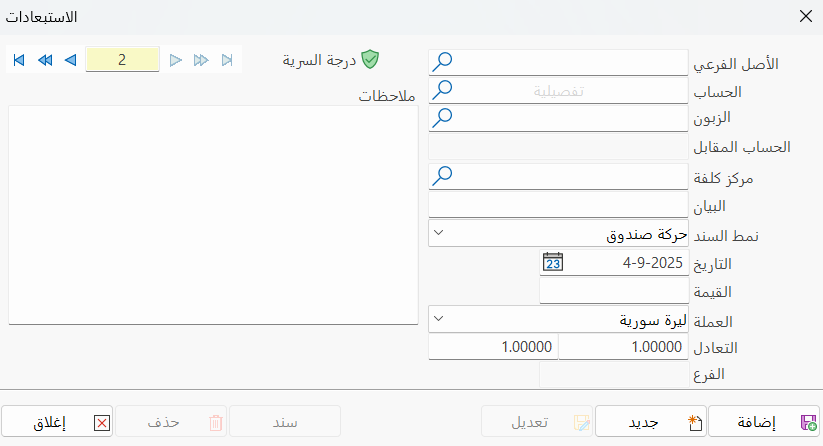
Main Fields
The asset reduction card consists of several fields for adding all the information needed to define it in alameen ERP:
Card Number and Navigation Buttons
Please see Serial Number and Navigation Buttons.
Security Level
Please see Security Level.
Sub Asset
Set the sub asset from which the reduction was made, or look it up with the search icon in the field.
Account
Enter the account to which the value of the reduction was added, or look it up with the search icon.
Customer
After you enter the account in the previous field, the name of the customer linked in the account card appears automatically, if there is one.
Contra Account
The program automatically fills the contra account field with the account added in the "Expenses Account" field of the material card.
You can change the account by typing it, or search for it with the search icon in the field.
Cost Center
If this asset belongs to a particular cost center (for example, a truck used in a particular project), you can enter the name or code of the cost center in this field. This links the operation to the selected cost center. (You can later see the expenses related to this cost center using the reports.)
Notes
Enter an additional explanation of the reduction from the fixed asset.
Entry Form
Select the form to use for generating the entry from the drop-down list, by clicking the arrow in the field.
Date
In this field you set the date of the reduction operation, by typing it or using the calendar window.
Value
Enter in this field the amount that was or will be spent on the reduction.
Currency
Set the currency you want to use for the reduction from the asset, from the drop-down list of the field.
Parity
The parity appears automatically after you select the currency in the previous field.
If you select the basic currency of the file, the parity is (1).
If you select a different (previously defined) currency, the fields show the currency parity and the equivalent.
Branch
This field shows the branch where the asset you are reducing is located.
Notes
You can add information related to the asset in the "Notes" field.
Standard Commands
Please see Standard Commands.