Bank Card
This window lists the bank cards your company or organization deals with.
You open the bank card from the Accounts tab on the main ribbon - "Settings" group.
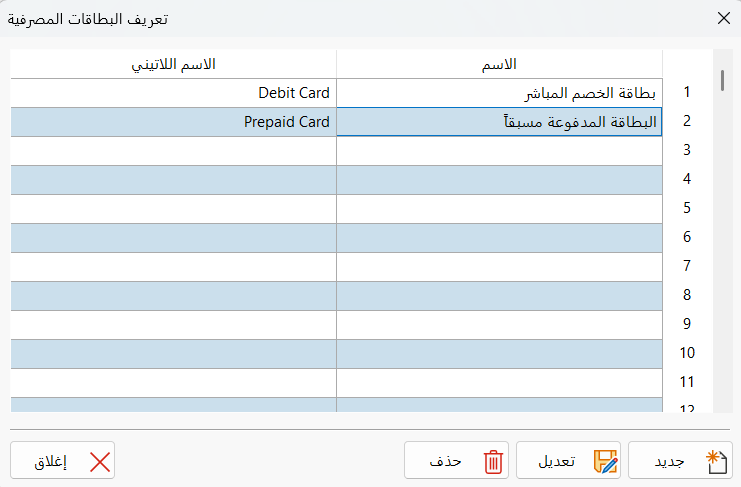
It appears as follows:
Main Fields
The bank cards window contains a table of the bank cards you defined earlier in the program. The table contains the following fields:
Name
This field shows the name of the defined bank card.
Latin Name
This field shows the name you entered for the bank card in another language.
Control Buttons
You can add, modify, or delete bank cards with the following buttons:
New
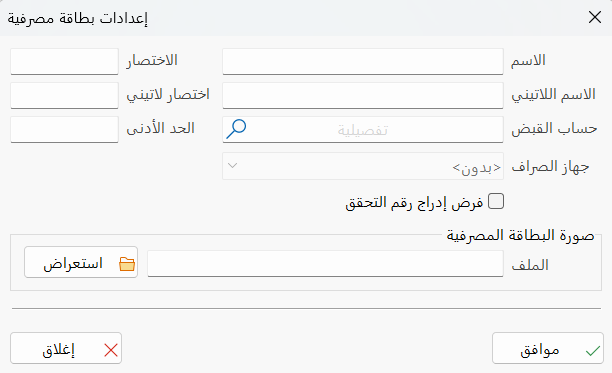
Defines a new bank card. After you click the button, a window opens in which you set up the bank card with the following fields:
Name
Enter the name of the bank card you are defining (this field is mandatory), for example: Al-Ahli Bank – Debit Card.
Latin Name
You can enter the name of the bank card in another language.
Receipt Account
Type the name of the receipt account, or click the search icon in the field to choose the account from the account selection window that opens. (This field is mandatory.)
Payment Terminal
Enter the name of the terminal in which the bank card you are defining will be used.
Force Verification Number
You can enable or disable forcing the entry of a verification number when the card you are defining is used.
Abbreviation
Enter a suitable abbreviation for the card you are defining.
Latin Abbreviation
Enter a suitable abbreviation for the card in another language.
Minimum
You can set the minimum by typing it directly in the field.
Bank Card Image
Add an image of the bank card by clicking "Browse", choosing the image on the computer, then clicking "OK" to add it to the bank card settings.
Click "OK" in the bank card settings window to save the card.
Modify
To modify the settings of a bank card defined earlier, click the card name in the table, then click "Modify". The bank card settings window opens so you can make the change you want; then click "OK" to save the changes.
Delete
To delete a bank card defined earlier, click the card name in the table, then click "Delete" in the window. A warning message asks you to confirm the deletion: click "Delete" to confirm, or "Cancel" to keep the bank card.
Close
Closes the window after the contents are saved and you have finished working in it.