Account Card
The account card is one of the cards alameen provides to link operations together: you use it to define and add new accounts, or to view the data of defined accounts and change it. The data ranges from the name, type, and balance to the financial position and the accounts linked to the account.
Open the account card from the Accounts tab on the main ribbon - "Settings" group, as follows:
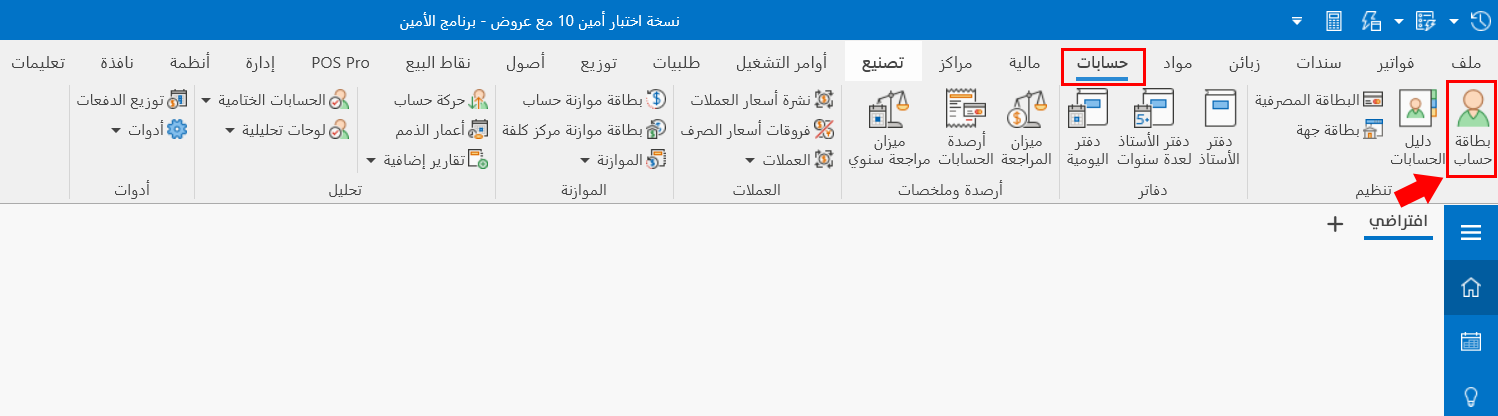
It appears as follows:
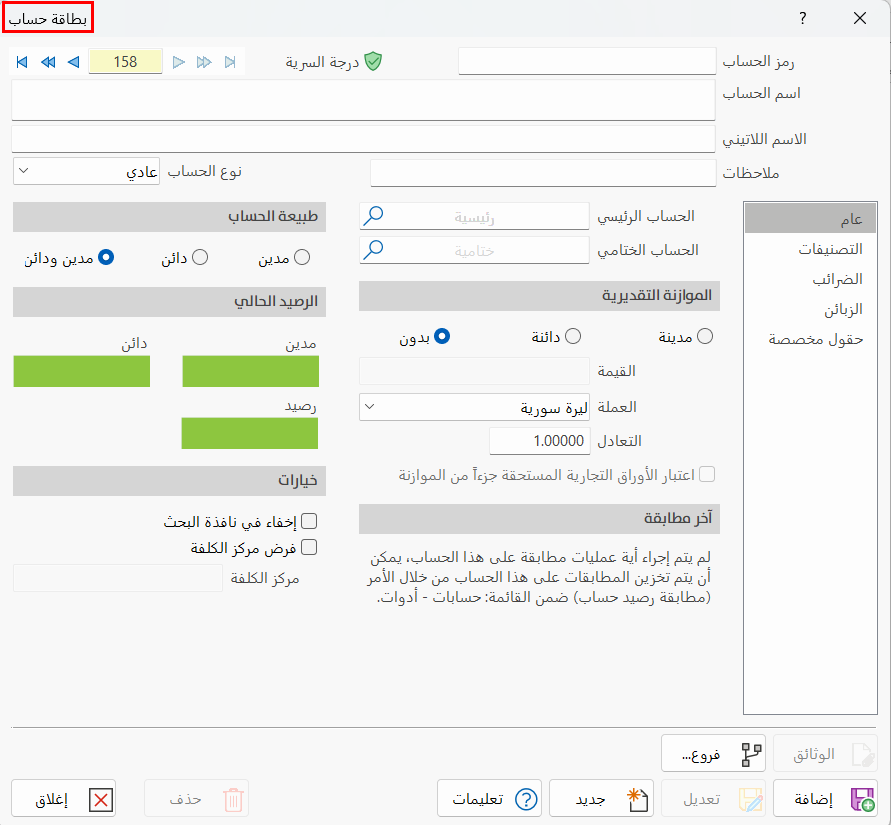
Main Fields
The account card consists of several fields for adding all the information needed to define, modify, or delete accounts, as follows:
Card Number and Navigation Buttons
Please see Serial Number and Navigation Buttons.
Security Level
Please see Security Level.
Account Code
The account code appears in a field at the top of the window. You can type the code according to standards you choose, or the program puts a suitable code automatically, in sequence, when the card is saved (this field is mandatory).
Account Name
Enter the name of the account you are defining (this field is mandatory).
Latin Name
You can enter a name for the account in another language.
Notes
You can write additional information or important notes about the account you are defining a card for.
Account Type
The field contains four types of accounts that you can choose from its drop-down list: Normal, Final, Aggregative, Distributive.

The account card window changes with the account type you choose, and the fields of the tabs appear according to the data each account needs.
Normal Account
When you open the account card, the window opens with the normal account type by default. It is used to define the normal accounts that make up the chart of accounts, such as assets, liabilities, expenses, and revenues.
The program provides many tabs and fields through which you can enter data. For the normal account type, they are as follows:
General Tab
It includes the following fields:
- Main Account
The parent account of the account you are defining. You can type it or look it up with the search icon in the field. The main account must have been defined earlier with an account card, as a normal account, to appear among the available options.
For example, the fixed assets account is the main account of the land, real estate, and furniture accounts.
Likewise, the liquid funds account is the main account of the cash box.
- Final Account
The final account is the financial statement the account belongs to, such as the balance sheet, profits and losses, and trading. So every normal account must have a final account; you can enter it directly or look it up with the search icon (this field is mandatory).
- Budget
You can rely on the estimated budget to warn you when the account balance exceeds a certain limit. First choose one of the following: Debit, Credit, None.
Then fill in the following fields:
Amount: the figure at which you want to be warned. Currency: the account currency to be used. Parity: shows the exchange rates table's parity of the currency set for the account when it was added. Consider due papers part of the budget: you can enable it by clicking the check box next to this statement.
- Last Reconciliation
Shows the date of the account's last reconciliation.
You can carry out reconciliations from the Accounts tab, then the Tools button, by choosing Account Balance Reconciliation.
- Account Nature
In this field you set the nature of the account: debit, credit, or both.
Some accounts are always debit, in which case you enable the "Debit" option; if the account is always credit, you enable the "Credit" option; and if the account may be debit sometimes and credit at other times, as is the case for most accounts, you choose "Both", which is the default option.
- Current Balance
It contains three fields that show the financial position of the account: Debit, Credit, Balance.
These fields show the value of the transactions made on the account.
For example, the following is the current balance of an account added earlier.
- Options
Additional options related to the account:
Hide in Selection Window: you can enable this option when the account is no longer used, to keep it from appearing in the search list again.
Enforce Cost Center: when enabled, you can set the cost center in the Cost Center field.
Classification Tab
It contains the following fields:
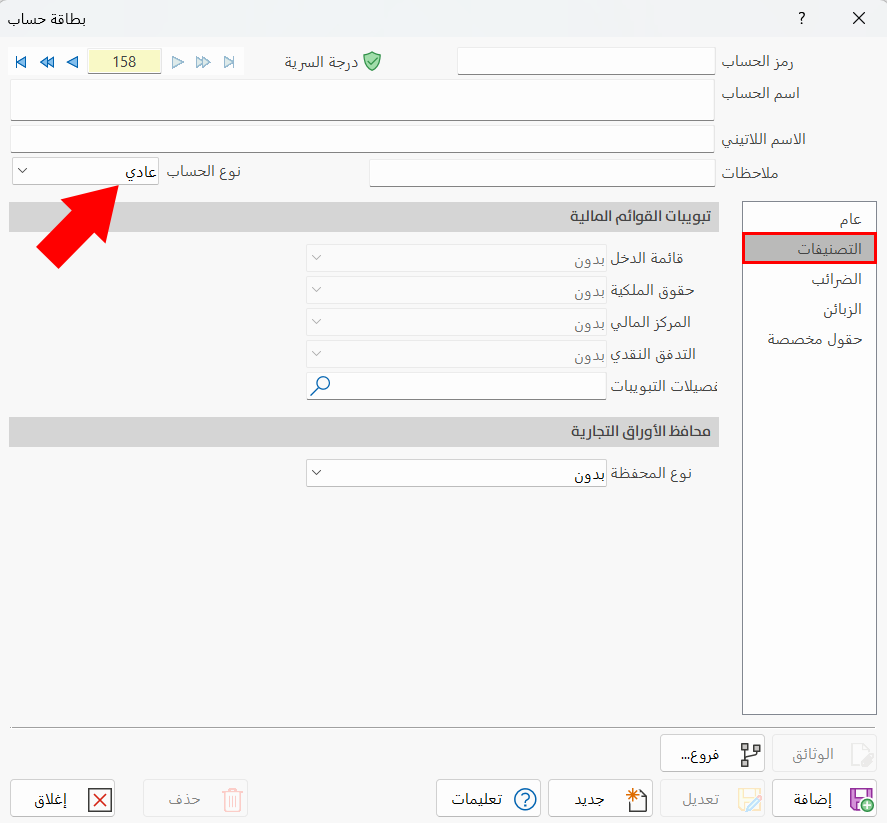
- Financial Statement Classifications
Help you organize accounts according to fixed standards; they are organized according to the final account set on the "General" tab.
They are:
Income Statement (sales revenue, selling and distribution expenses...). Owner's Equity (capital, partners' drawings...). Financial Position (fixed assets, accumulated depreciation...). Cash Flow (investing activities).
Classification details: you can choose from the classification details defined earlier by clicking the search icon in the field, and you can also enter a new Classification Detail Card from the same window by clicking the pen icon on the window's ribbon. A new window named "Classification Detail Card" opens, as follows:
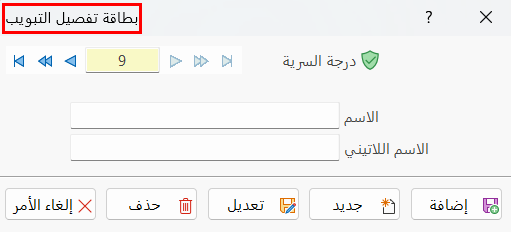
Fill in the fields with the required data, and click "Add" to complete the operation.
- Commercial Papers Portfolios
This field is used in the accounts of commercial papers. You can choose the portfolio type in the "Portfolio Type" field, whose options are:
None, Receive, Pay, Receive or Pay, Endorsement (transferring the right in a commercial paper from one person to another), Under collection (submitting a paper to the bank to collect its value later), Under discounting (submitting a paper to the bank to have its value paid before its maturity date in exchange for a commission), Discount.
Taxes Tab
This tab sets the taxes imposed on the account and their percentage: enable "Use VAT" by clicking the check box next to it, and the fields on the tab become available:
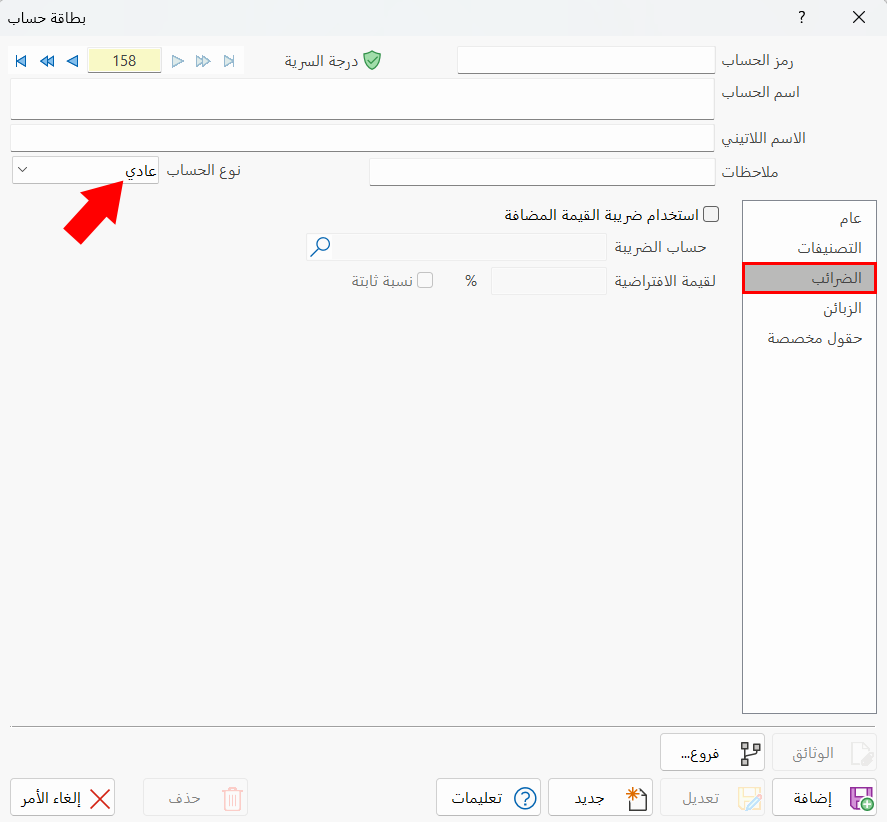
Tax Account: choose one of the accounts defined in the program as its tax account.
Default Value: you can put the default tax percentage in this field. If you want to fix this percentage, enable "Fixed Rate" by clicking the check box next to it.
Customers Tab
The tab shows the customers linked to the account, in a table that contains customer data such as the customer name, balance, and last reconciliation.
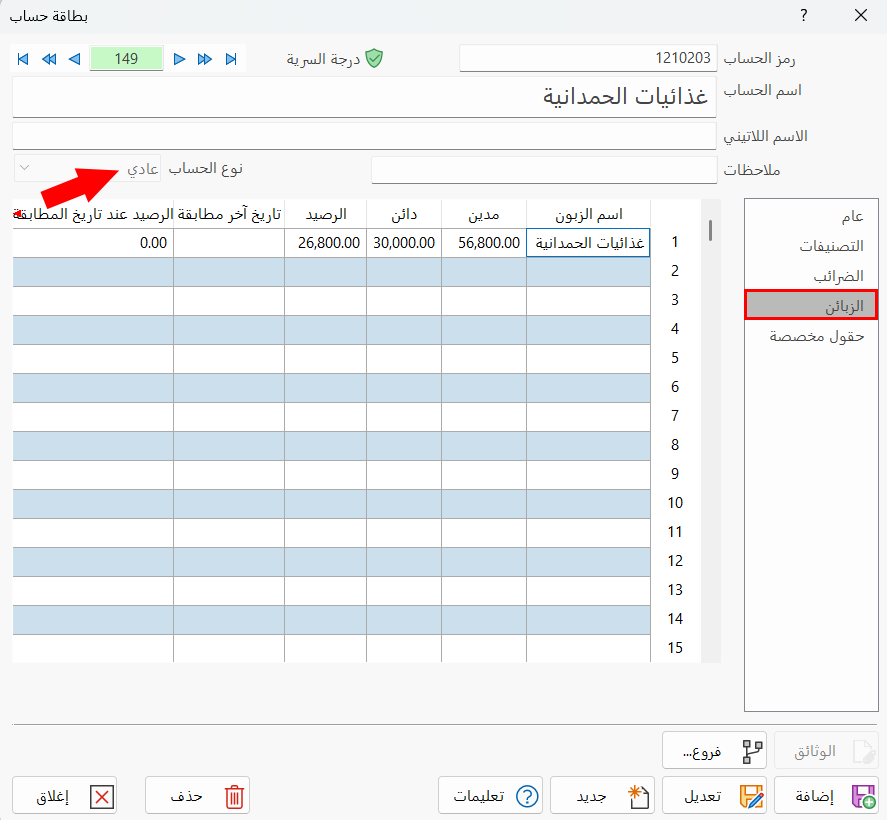
You can link customers to the account from: the Customers tab, then the Customer/Supplier Card button; when the window appears, click the "Accounts" tab, then fill in the required data.
Custom Fields Tab
Used to add data specific to the account through the custom fields feature linked to the account card.
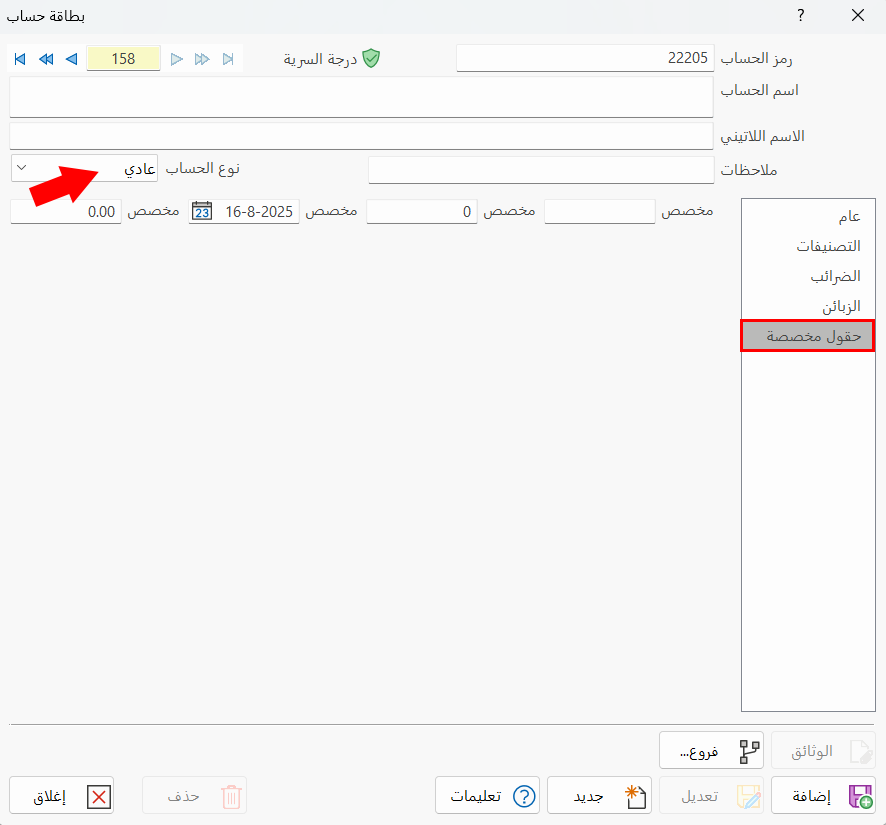
For more information, see Custom Fields.
Final Account
Define the result accounts (financial statements) with this type of account.
After you open the account card and choose the "Final" account type, the window looks like this:
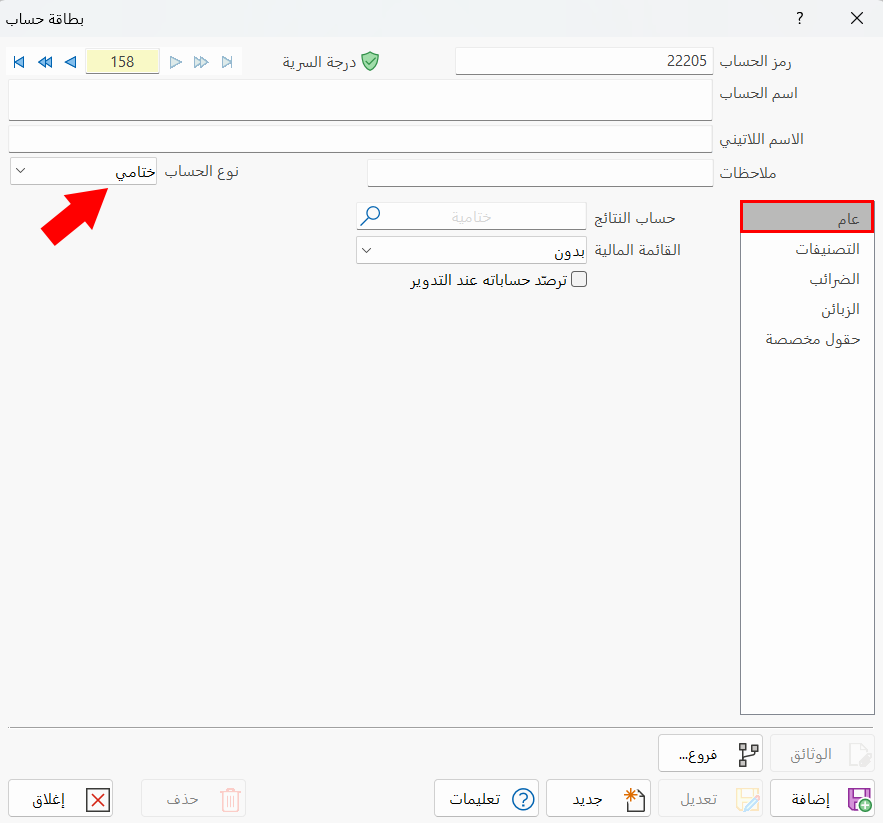
General Tab
The tab contains the following:
- Final Account
An optional field you can use to set one of the final accounts, if the new account belongs to another final account, such as the balance sheet, profits and losses, or trading.
- Financial Statement
It has several options that you choose according to the final account set earlier: None, Income Statement, Owner's Equity, Statement of Financial Position.
- Close Its Accounts At Period End
This option lets the account be carried from one fiscal period to a new one. You can enable it by clicking the check box next to the statement.
Aggregative Account
An aggregative account gathers several accounts into one account, so its balance equals the total of the balances of the accounts gathered in it. For example, the Damascus customers account gathers the accounts of all the customers in the city of Damascus.
After adding a new aggregative account, you must set the accounts to be gathered and the data related to the account, through:
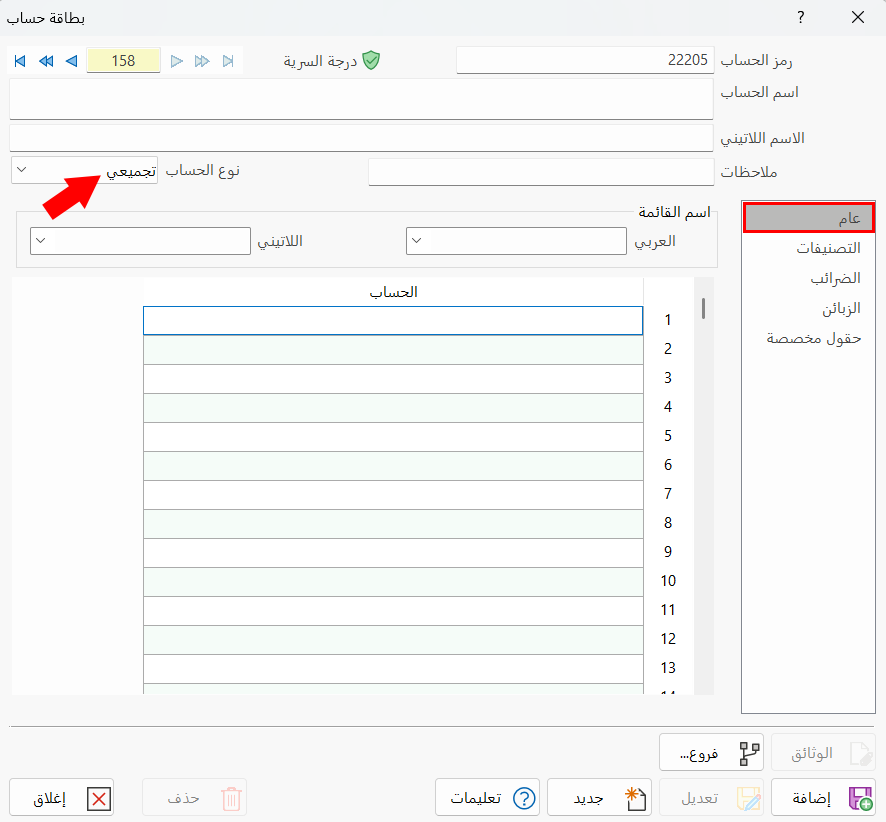
General Tab
You can add the accounts you want to gather in this account directly in the table, and the tab also lets you place them in menus as you need, through the following:
- Menu Name
Enter the menu name in its fields if you want to add menus. You can write the name in Arabic and in another language of your choice.
- Account Table
Contains the accounts that will be gathered in this account.
Distributive Account
A distributive account is an account whose recorded value is distributed over several accounts according to the percentage set for each account; for example, distributing profits to partners according to each partner's percentage.
General Tab
The tab contains the following:
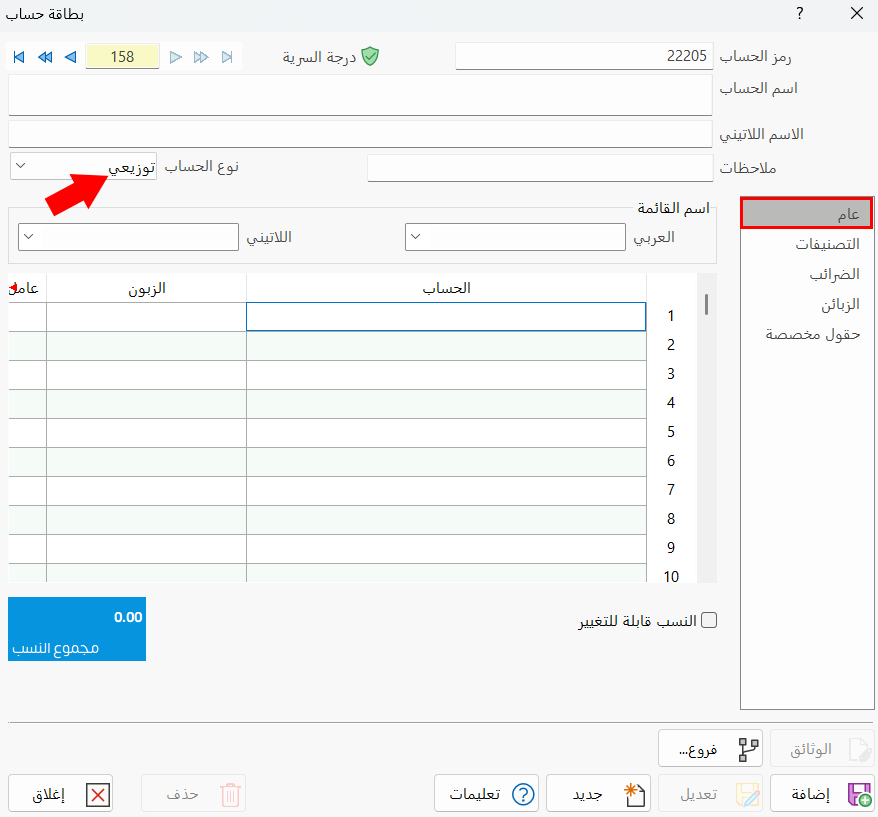
- Menu Name
Enter the menu name in its fields if you want to add menus. You can write the name in Arabic and in another language of your choice.
- Account Table
The first column, "Account", contains the accounts over which the data of this account will be distributed; in the second column, "Division Factor", you write the distribution percentage of each account.
- Total Ratios
Gives the total of the data in the "Division Factor" column, so you can easily see the total of the percentages you have added.
Enable "Rates are changeable" to allow changing the division factor, by clicking the check box next to the statement.
To change the distribution percentages in a journal entry, press F6.
Standard Commands
Please see Standard Commands.