Open Database
The "Open Database" operation opens a database directly from the server, without having to carry out several manual steps one after the other.
You can reach "Open Database" directly after opening the program; it appears on the alameen ERP welcome screen.
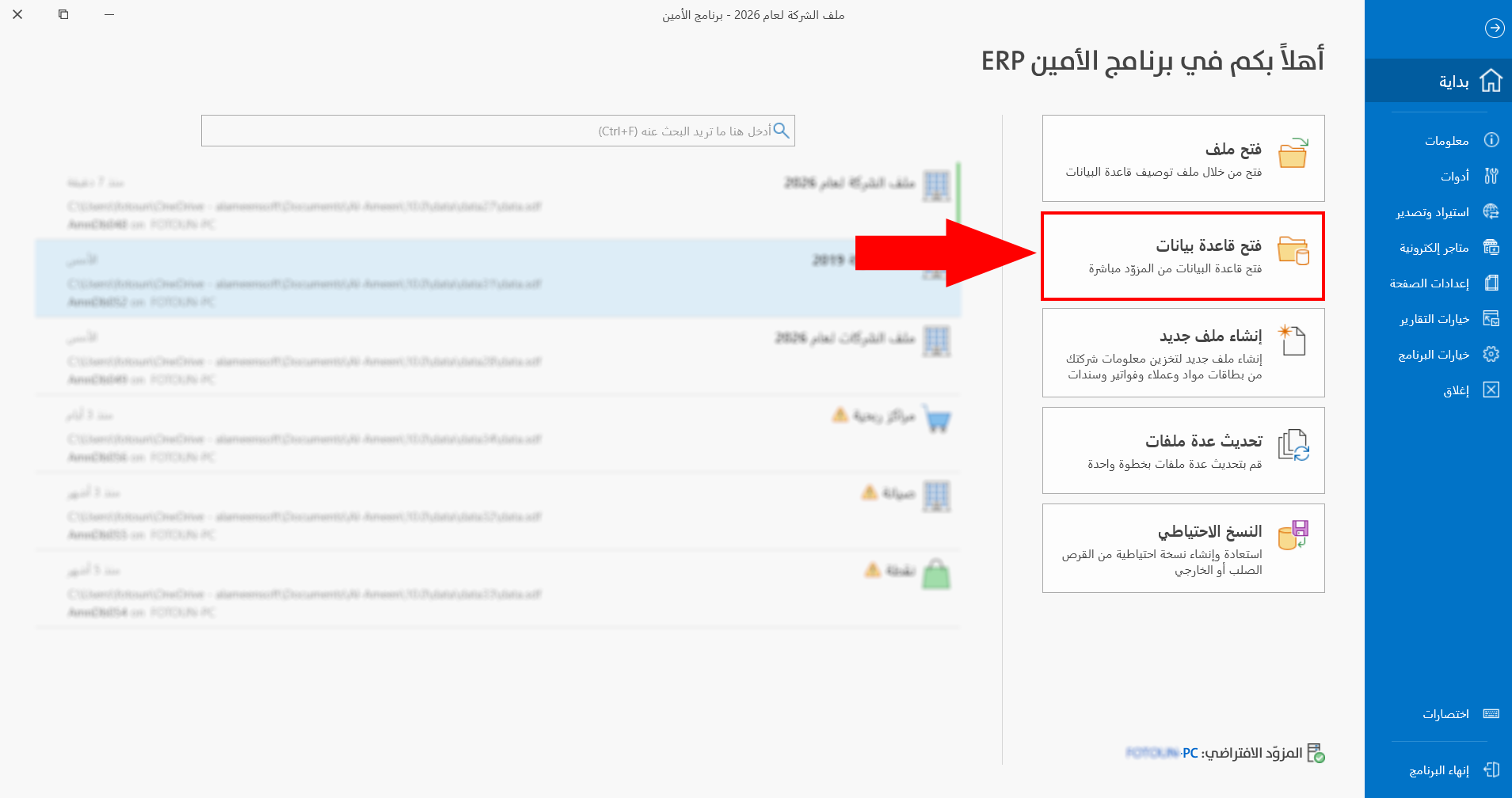
If you are logged in to a file, you can reach it by clicking the "File" tab on the main ribbon; the program moves directly to the welcome screen.
After you click "Open Database", the window opens as follows:
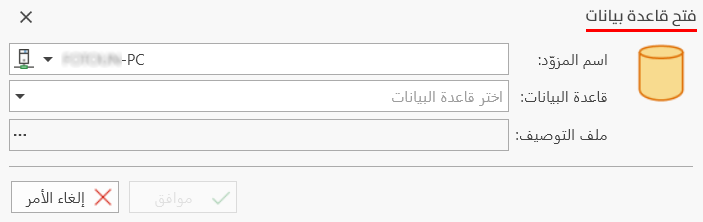
Contents of the Open Database Window
You start opening the database by filling in the following fields of the window:
Server Name
This field lets you choose the name of the computer or server on which the database linked to the program file is located: click the arrow in the field to open a list of the servers connected to the same internal network.
Database
You can choose one of the existing alameen databases only, from the drop-down list of the arrow in the field.
Click the database you want, and its description file appears automatically in the "Description File" field, as follows:
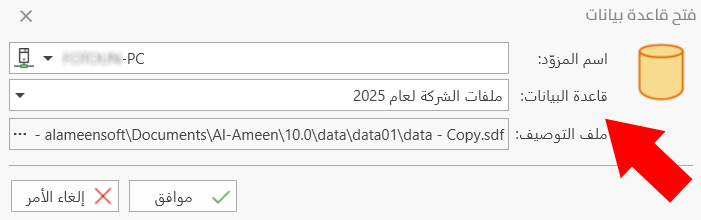
Description File
After you choose the database, the description file is prepared immediately.
You can click the three dots in the "Description File" field of the "Open Database" window to change the path of the available database files.
OK Button
Click "OK" to start opening the database, and the login window of the file appears.
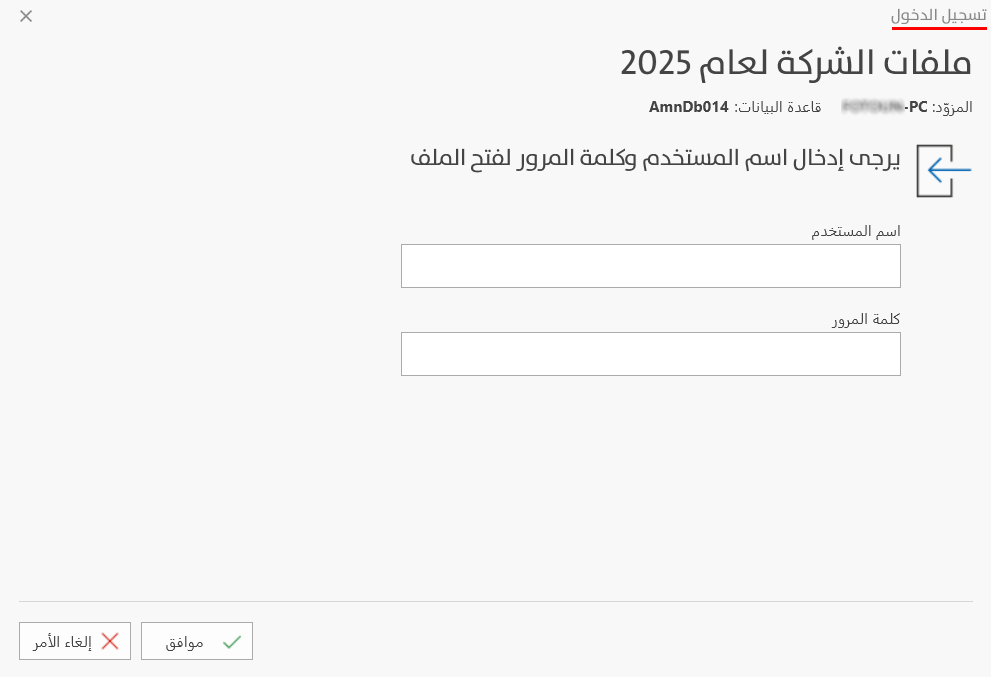
Enter the login details, then click "OK"; the program shows a window with the information related to the database, as follows:
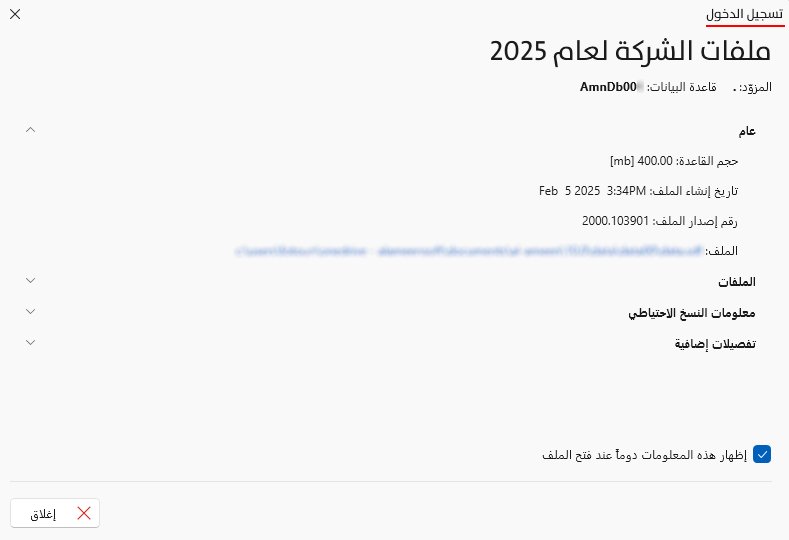
Opening the Database of a File That Needs Updating
After you click "Open Database" on the main screen and fill in the server name and database fields, the file you chose may need updating. After you click "OK", the following window appears:
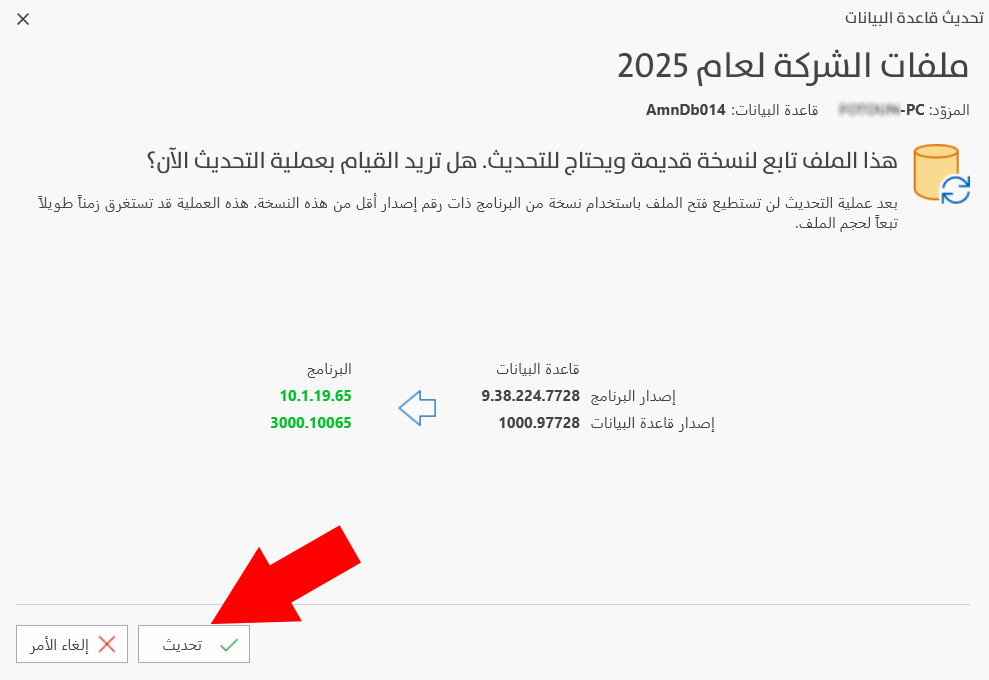
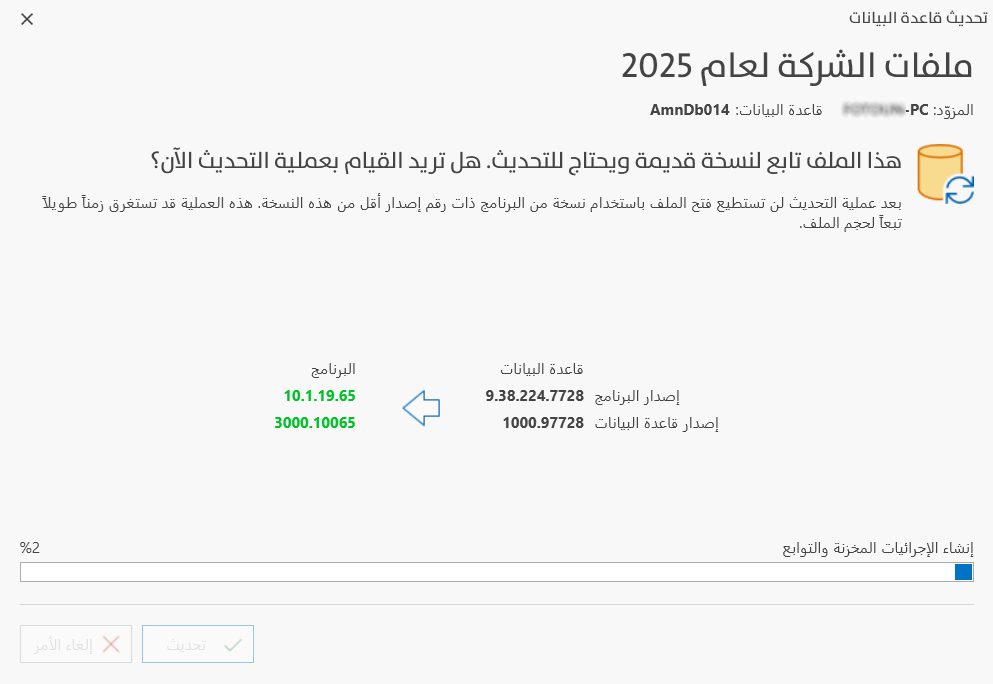
Clicking the update button starts updating the database immediately, as follows:
When the update is finished, the login window appears, confirming that the update succeeded, as follows:
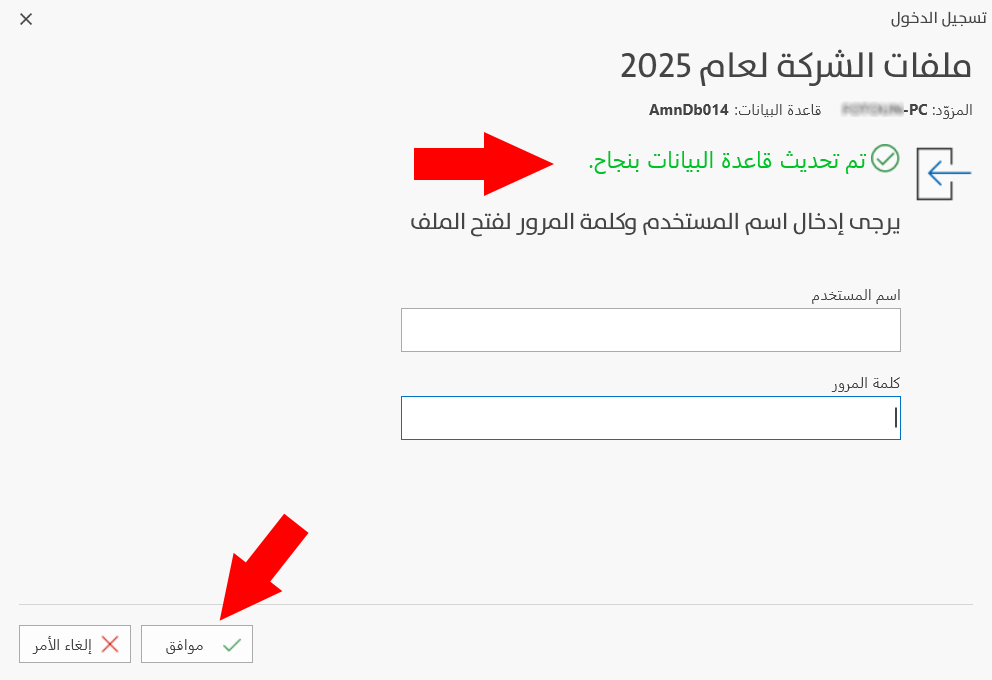
Clicking "OK" completes opening the database.
To open a database, follow these steps:
-
Click "Open Database".
-
Choose the server name.
-
Choose the database.
-
Click "OK" in the Open Database window.
-
Log in to the file.