Link Online Store
alameen ERP can integrate with various online stores, such as Shopify and WooCommerce, to automate data exchange, reduce manual work, and keep the store and the accounting system in sync in real time.
Linking alameen with your online store helps you manage products, prices, and inventory from inside alameen, while customer orders coming from the online store are received and converted automatically into sales invoices in the system.
Linking alameen ERP with a Shopify Store
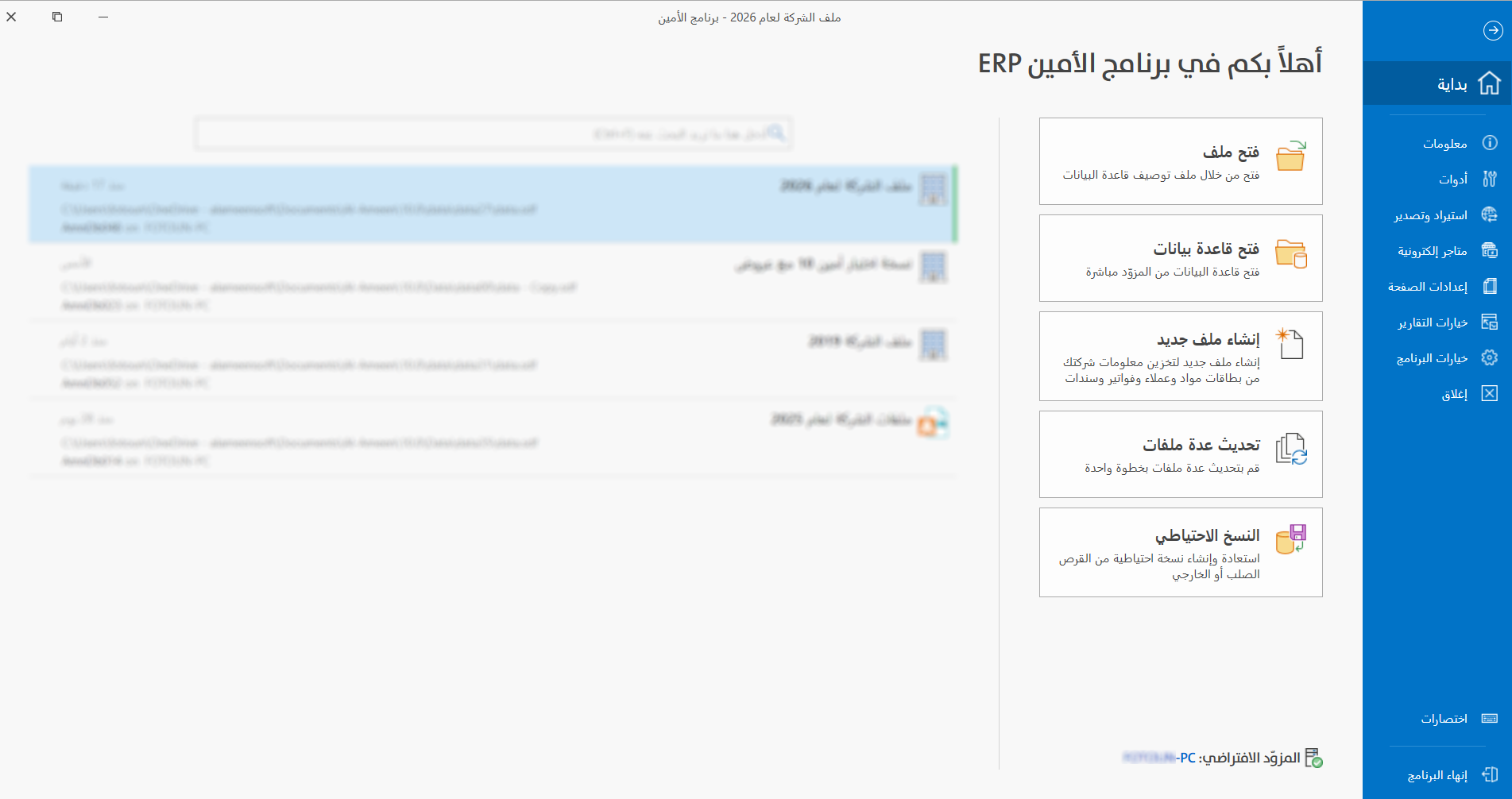
You can link your Shopify store with alameen ERP after logging in to the file, by clicking the "File" tab on the main ribbon. The program moves to the following welcome screen:
Click the "Online Stores" tab, then click the Shopify store name, and the "Store Settings" window opens as follows:
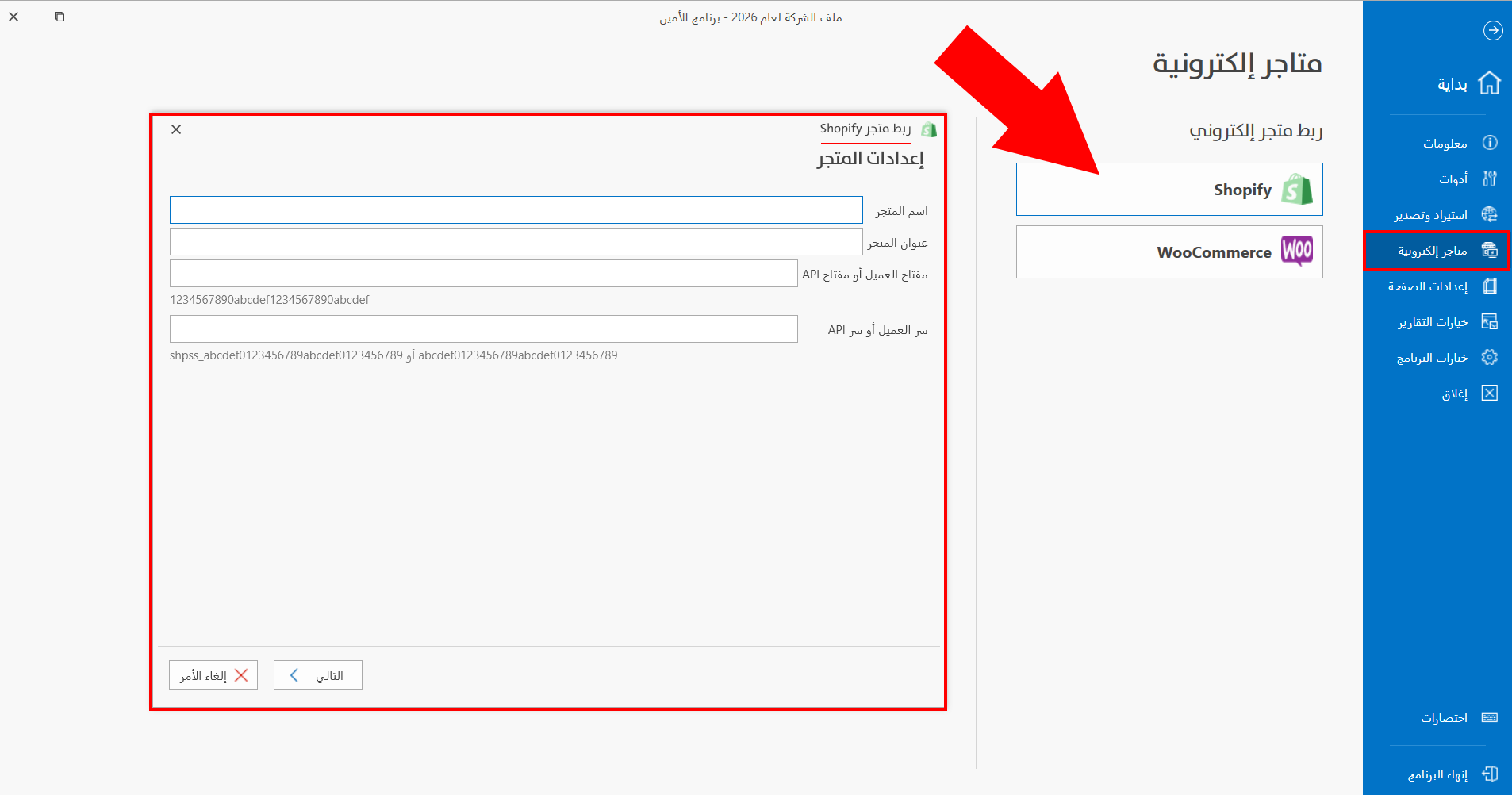
Contents of the "Store Settings" Window for Linking a Shopify Store
The settings window contains a number of mandatory fields for linking your Shopify store with alameen ERP, so fill in the following fields:
-
Online Store Name
-
Store Address
-
Client Key or API Key
-
Client Secret or API Secret
The field in alameen, and what corresponds to it in Shopify:
-
Store Address corresponds to Shop URL
-
Client Key or API Key corresponds to API Key
-
Client Secret or API Secret corresponds to API Secret or Access Token
alameen is linked with Shopify through the store's API credentials. After the identity is verified, the two systems exchange data automatically: alameen syncs products, inventory, and prices to Shopify, and receives new orders and customer data from Shopify and converts them into sales documents in the ERP system.
Linking alameen ERP with a WooCommerce Store
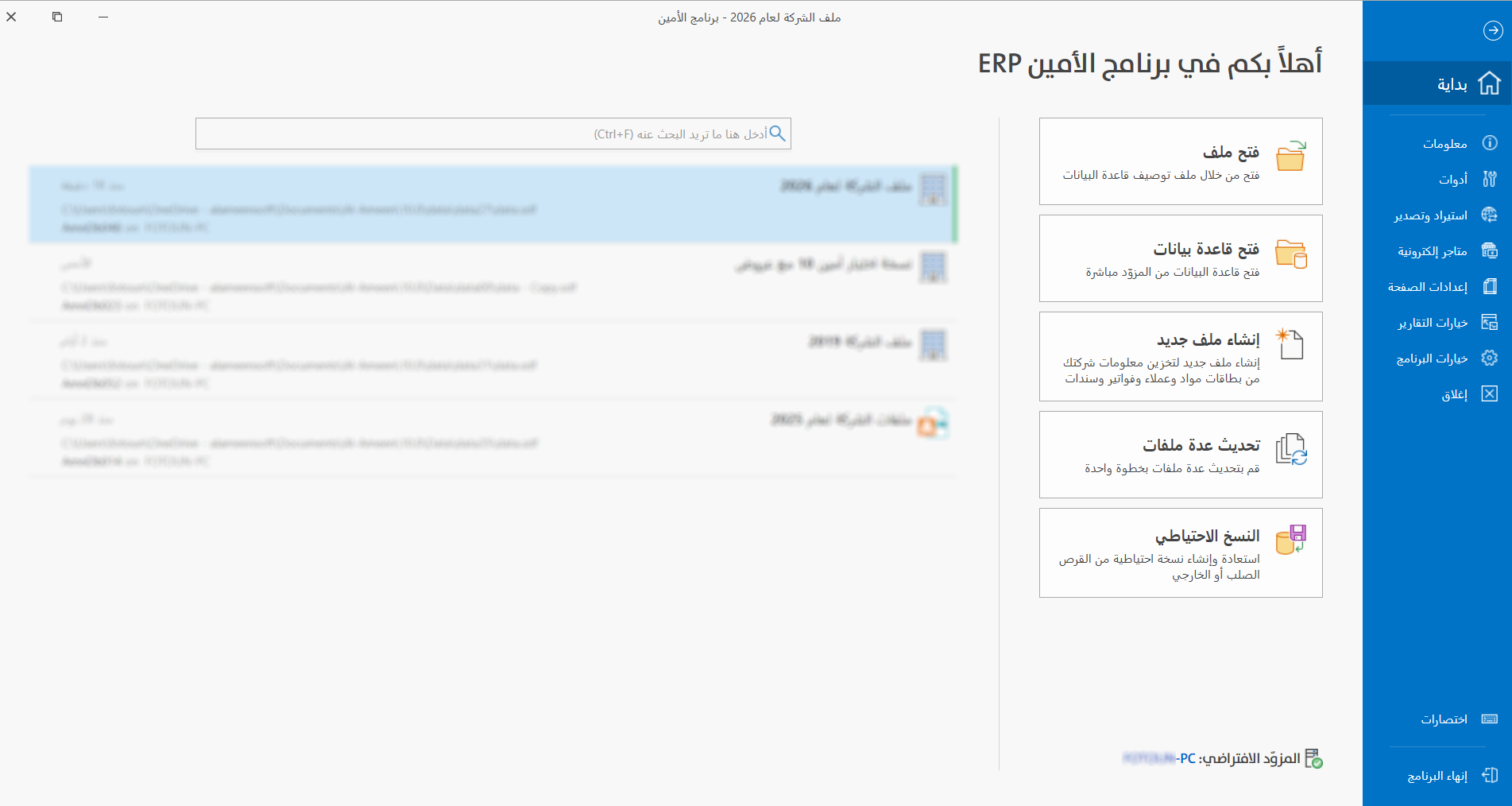
You can link your WooCommerce store with alameen ERP after logging in to the file, by clicking the "File" tab on the main ribbon. The program moves to the following welcome screen:
Click the "Online Stores" tab, then click the WooCommerce store name, and the "Store Settings" window opens as follows:
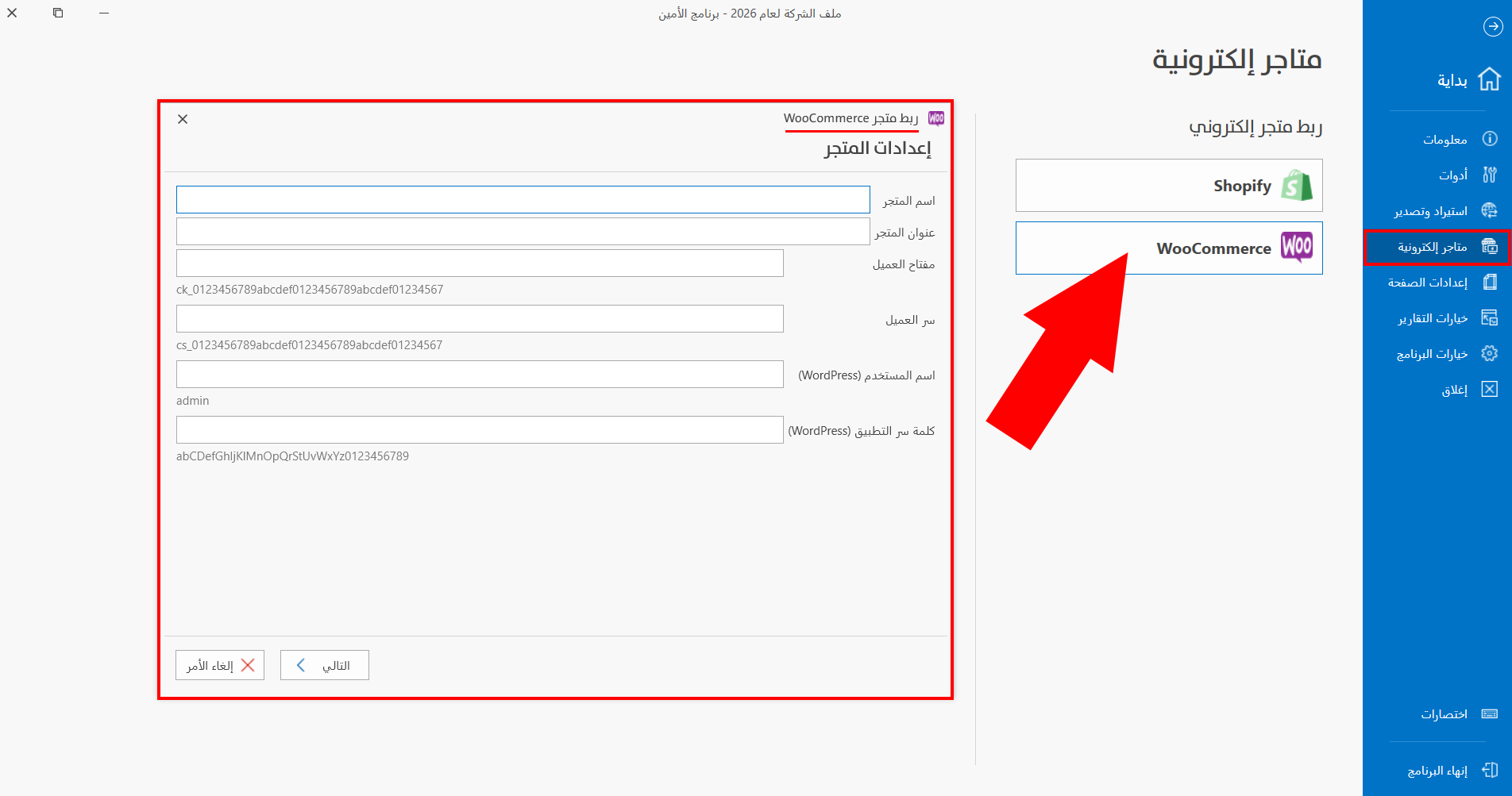
Contents of the "Store Settings" Window for Linking a WooCommerce Store
The settings window contains a number of mandatory fields for linking your WooCommerce store with alameen ERP, so fill in the following fields:
-
Online Store Name
-
Store Address
-
Client Key
-
Client Secret
-
User Name (WordPress)
-
Application Password (WordPress)
Through this connection between alameen ERP and the WooCommerce store, you create a secure connection with the online store, which allows data to be exchanged between the two systems and the supported operations to be synced according to the connection settings.
After defining materials in alameen, you must enable their appearance in the online store from the "Online Stores" tab of the card of each material you want to use in the store.