Create New File
Use the file creation wizard to set up the new company file step by step, from choosing the template and the storage environment to creating the database and starting actual work in the system.
What Is Creating a New File?
Creating a new file is the step with which you start setting up your company's work environment in the program. It creates the basic data needed to store accounting and warehouse information, and to work with it later in sales and purchase invoices, entries, and reports.
When you run the program for the first time, a welcome window takes you straight to this process, and you can also reach it later from File > Home > Create New File.
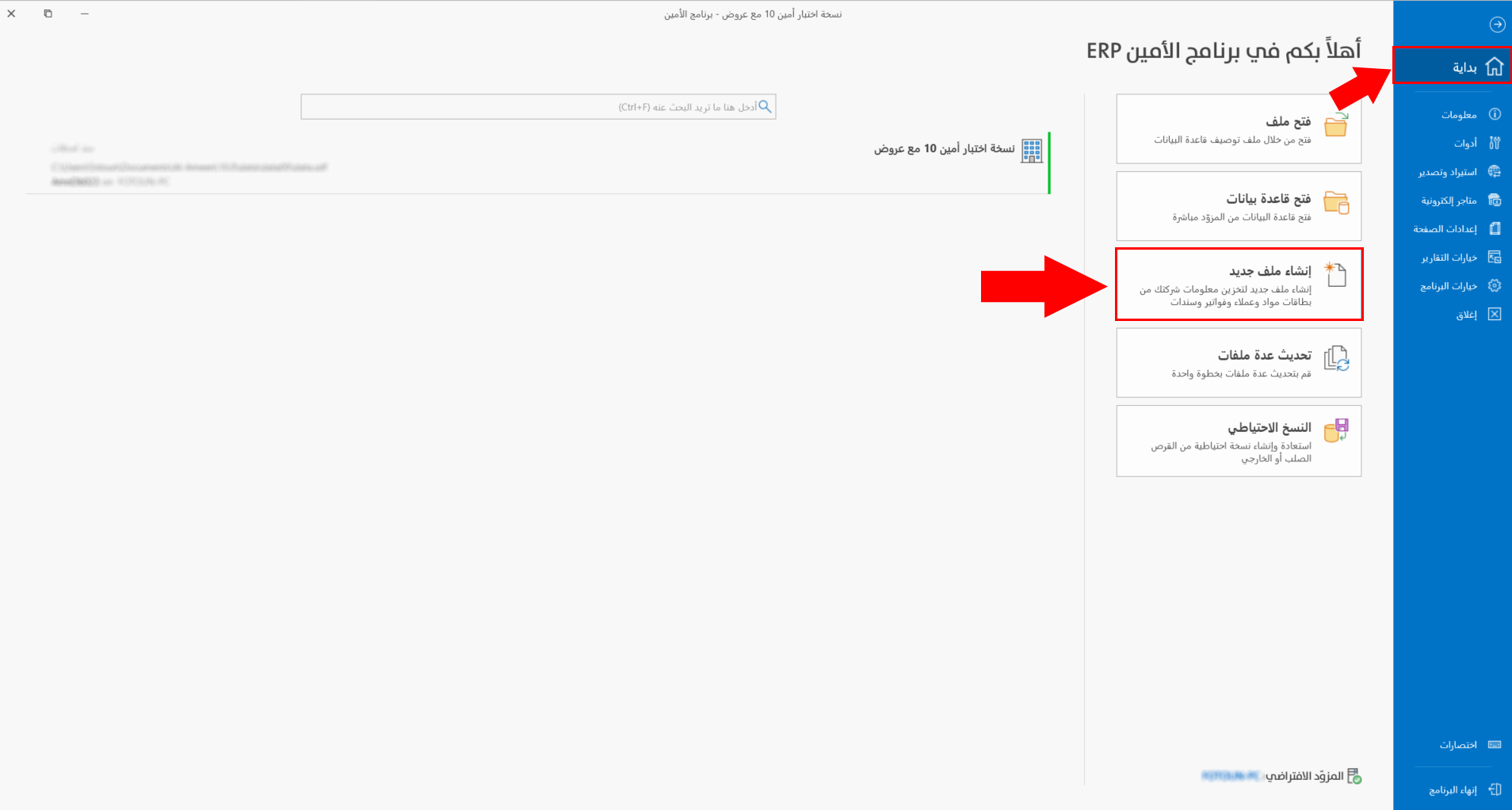
Start this process when you want to create a new company file, or when you need a new, separate work environment in the system.
What Does This Process Produce?
When you complete the creation wizard successfully, you have:
- A new company file ready to use.
- A database set up according to the options you chose.
- A shortcut for quick access to the file.
- A first user with administration permissions and access to the file.
- Initial settings, such as the opening date, the basic currency, and the logging options.
Remember that the shortcut location is not where the data is actually stored; the real data is stored on the SQL Server you select in the wizard.
Before You Start
It is best to prepare the following information before starting the creation:
- The company name, or the descriptive name of the file.
- The first user name and password.
- The SQL Server on which the database will be created.
- The database name you want, if you have a naming standard.
- The date accounting work actually starts.
- The basic currency used in the company.
- The template or chart of accounts that suits the nature of the business.
Stages of Creating the File
Creating a new file goes through 12 successive stages. You can use this section as a quick map before going into the details:
1) Welcome Window
The starting point of the wizard, with a short introduction to the file creation function.
View the Page2) Select Creation Template
Choose the template that suits your work: the default template, or one of the ready-made templates and charts.
View the Page3) Select Shortcut Location
Set where to create the shortcut you will use to open the file later.
View the Page4) Notes on the File Location
An important page that explains the difference between the shortcut location and where the data is really stored on SQL Server.
View the Page5) Enter Files Description
Enter a clear name that distinguishes the company file and makes it easy to recognize later.
View the Page6) Enter User Name
Define the first user of the file and set the password used to log in to the system.
View the Page7) Select the SQL Server and Database
Choose the server on which the database will be created, and set the database name.
View the Page8) Opening Date
Set the date actual accounting work starts in the file; operations are built on this date.
View the Page9) Enter the Basic Currency
Choose the main currency, with its code, the name of its fraction, and the relation between the main and fractional units.
View the Page10) Log File Options
Enable the log file when you need to track add, modify, and delete operations, with the option of keeping a detailed record of changes.
View the Page11) Summary
Review all the options you chose before starting the creation; you can use the simplified mode to speed up the process.
View the Page12) Create Files
At this stage the necessary tables, indexes, and procedures are created, and the file becomes ready to use.
View the PageHow Do I Choose the Right Template?
The right template depends on the nature of your business. Some templates are general, and some are aimed at particular activities or ready-made charts of accounts.
Choose the default template when:
- You want to start from a general file without any specialized preparation.
- You want to set up the chart and the settings manually after creation.
Choose a ready-made template when:
- You have a well-known type of business that needs ready initial settings.
- You want to use a ready-made chart of accounts or structure.
- You want to reduce the time needed for the initial preparation.
Important Notes Before Clicking "Start"
- Make sure the server name and the database name are correct.
- Use a clear descriptive name for the file so it is easy to recognize later.
- Choose the opening date carefully, because it sets the start of accounting work in the file.
- Make sure the correct basic currency is set before starting operations.
- Enable the log file if you need clear tracking of the changes users make.
- Review the Summary window carefully before starting to create the files.
Keep the first user name and password in a safe place, because they are the first administrative access to the new file.
Do I Need the Simplified Mode?
The simplified mode is useful when you want to reduce the number of windows and go quickly to the Summary window, then edit the basic fields from there instead of going through each stage in detail.
If this is the first time you are creating a file, or you want to review all the options step by step, it is better to follow the full path.
What Comes After Creating the File?
Once the file is created successfully, you have completed the step of establishing the company file, and you can then go on to:
- Define the basic data needed for work.
- Continue preparing the program for work according to the nature of the business.
- Enter the opening entry and the opening inventory when needed.
- Start daily transactions and accounting and warehouse operations.
Use the search at the top of the site to quickly reach any stage of creating the file or any setting related to it.